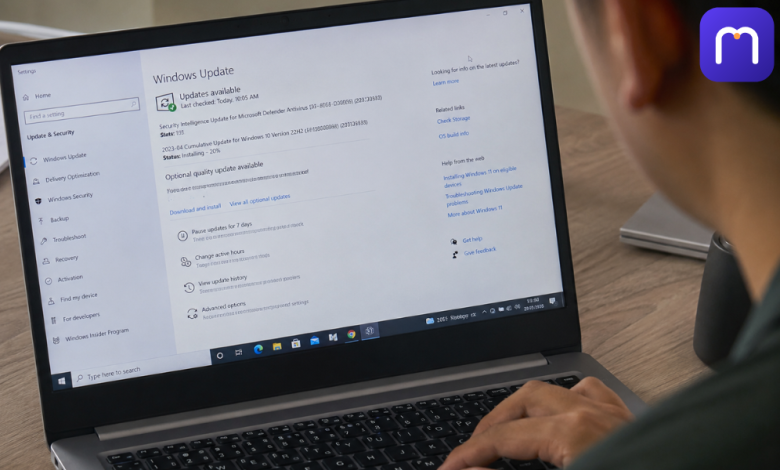
Your mouse lags for a split second. Your Wi-Fi drops for no reason. Your graphics card stutters in a game it ran fine last month. Nine times out of ten, the culprit isn’t your hardware at all. It’s a driver that’s fallen behind.
Knowing how to update drivers in Windows is one of those skills that sounds technical but really isn’t, once you understand which method to use and when. This guide walks through every reliable way to do it on Windows 10 and Windows 11, plus the safety steps most tutorials skip: how to back up your current drivers, how to undo an update that goes wrong, and how to tell whether the update actually worked.
How to Update a Driver in Windows
To update a driver in Windows, open Device Manager, right-click the device, and choose “Update driver,” then select “Search automatically for drivers.” For a broader sweep, go to Settings, then Windows Update, then check for optional updates, since many driver updates are listed there separately from regular Windows updates. For specialized hardware like a graphics card, it’s usually better to download the driver directly from the manufacturer’s website (NVIDIA, AMD, Intel, Dell, HP, or Lenovo).
What a Driver Actually Does
A driver is the small piece of software that lets Windows talk to a specific piece of hardware, your graphics card, printer, network adapter, or touchpad. Without the right driver, Windows either can’t use the device at all or has to fall back on a generic version that leaves out most of the hardware’s real capability.
When a driver is outdated, three things tend to happen. Performance suffers first, usually in small, easy-to-dismiss ways. Compatibility issues show up next, often after a Windows feature update changes how the OS talks to hardware. And in the worst cases, an old or corrupted driver can trigger a Blue Screen of Death (BSOD), especially with graphics and storage drivers.
How to Check for Driver Updates on Windows
Before updating anything, it helps to know what you’re actually running. There are two quick ways to check for driver updates in Windows without installing anything extra.
Method 1: Device Manager
- Right-click the Start button and select Device Manager.
- Expand the category for the device you want to check (for example, “Display adapters” or “Network adapters”).
- Right-click the device and choose Properties.
- Open the Driver tab. You’ll see the current version, the date, and the provider.
Method 2: System Information
- Press Windows + R, type msinfo32, and press Enter.
- Go to Components in the sidebar and pick the hardware category you’re checking.
- Compare the version and date shown against what’s listed on the manufacturer’s support page for your exact model.
If the manufacturer’s site lists a newer version number or a more recent release date, your driver is outdated. That’s the whole test. No third-party scanner is required just to answer that question.
The Four Ways to Update Drivers in Windows
There isn’t one single “right” way to update drivers. There are four, and each fits a different situation. Here’s how they compare before we walk through each one.
| Method | Speed | Reliability | Risk Level | Best For |
| Windows Update | Moderate | High (Microsoft-tested) | Low | Everyday drivers: audio, network, printers |
| Device Manager | Fast | Moderate (limited database) | Low | Fixing a single misbehaving device |
| Manufacturer website / OEM tool | Slower (manual) | Highest for that specific device | Low to moderate | GPUs, chipsets, laptop-specific hardware |
| Third-party driver updater | Fastest (bulk) | Variable, depends heavily on the tool | Moderate to high | Only as a last resort, and only with a well-known, vetted tool |
Method 1: Update Drivers Through Windows Update
This is the safest starting point for most people, and it’s worth trying first before touching anything else.
On Windows 11:
- Open Settings and select Windows Update.
- Click Check for updates.
- Go to Advanced options, then Optional updates.
- Expand Driver updates, select what you need, and click Download and install.
On Windows 10:
- Open Settings, then Update & Security, then Windows Update.
- Click Check for updates.
- Select View optional updates, then Driver updates.
- Choose the drivers you want and install them.
Drivers that come through Windows Update have already been tested and digitally signed, which is why this route is generally considered the lowest-risk option. The tradeoff is that it isn’t always the fastest to receive brand-new releases, especially for GPUs.
Method 2: Update Drivers Using Device Manager
Device Manager is the right tool when one specific device is acting up, like a printer that stopped responding or a network adapter Windows lists as “Unknown device.”
- Right-click the Start menu and open Device Manager.
- Expand the relevant category and right-click the problem device.
- Select Update driver.
- Choose “Search automatically for drivers” to let Windows check locally and online.
- If nothing is found, select “Browse my computer for drivers” and point it to a driver file you’ve already downloaded.
- Restart if prompted.
One limitation worth knowing: Device Manager mostly searches Microsoft’s own driver database, which means it can miss newer releases that a manufacturer has published directly on their own site.
Method 3: Download Drivers Directly From the Manufacturer
For anything performance-critical, a graphics card, a chipset, a laptop’s touchpad or Wi-Fi card, going straight to the source usually beats waiting for Windows Update.
- NVIDIA: Use the NVIDIA App or visit the driver download page and search by GPU model.
- AMD: Use AMD Adrenalin Edition or search by product on AMD’s driver page.
- Intel: Use Intel Driver & Support Assistant, which scans your system and flags anything outdated.
- Laptop manufacturers (Dell, HP, Lenovo): Use Dell Command Update, HP Support Assistant, or Lenovo System Update. These tools bundle drivers that are specifically tested against that model, which matters more than it sounds like it should. A generic Realtek audio driver, for instance, can behave differently on a Dell laptop than the version Dell has validated for it.
Only download from the official manufacturer domain. A few red flags to watch for on any driver site: no HTTPS padlock, a download button that opens multiple pop-ups, a file size that seems oddly small or large for what it claims to be, or a URL that only loosely resembles the real manufacturer’s name. When in doubt, navigate to the manufacturer’s homepage yourself and find the support section from there rather than clicking a link from a search result or ad.
Method 4: Third-Party Driver Updater Software
Tools like Driver Booster, Driver Easy, or Snappy Driver Installer scan your whole system and update multiple drivers in one pass. They can be convenient if you’re managing several older machines and don’t want to check each device by hand.
That convenience comes with real tradeoffs, though. Many of these tools are ad-supported or bundle optional software during installation, and some have a track record of installing drivers that aren’t actually the best match for your specific hardware revision. If you go this route, stick to well-known names, decline any bundled offers during setup, and treat the results as a starting point to verify against the manufacturer’s own site rather than something to trust blindly.
For most home users, this method should be the last option tried, not the first.
Back Up Your Drivers Before You Update Anything
This step gets skipped constantly, and it’s the single biggest reason driver updates turn into stressful afternoons. Backing up first means any update is fully reversible.
Create a System Restore point:
- Search for “Create a restore point” in the Start menu.
- Under System Protection, click Create.
- Name it something clear, like “Before driver update,” and confirm.
Export your current drivers with PowerShell (optional, for power users): Run PowerShell as Administrator and use:
Export-WindowsDriver -Online -Destination “C:\DriverBackup”
Or, from an elevated Command Prompt:
pnputil /export-driver * “C:\DriverBackup”
Either command copies your currently installed drivers to a folder, so you have the exact files to reinstall if a new version causes problems.
Updating Graphics Card Drivers Specifically
GPU drivers deserve their own mention because they’re updated more often than almost anything else on a PC, and gamers and creative professionals tend to feel the effects of a bad one immediately.
Before installing a brand-new GPU driver, it’s worth a quick check of the relevant NVIDIA or AMD community forum to see whether other users are reporting problems with that specific release. Driver updates occasionally introduce new bugs even as they fix old ones, and a five-minute check can save an evening of troubleshooting.
If a new GPU driver does cause instability, a clean reinstall using the manufacturer’s own uninstall option (found in the same app used to install it) tends to resolve more issues than a standard update over the old version.
What to Do If a Driver Update Breaks Something
If a device stops working correctly right after an update, rolling back is usually faster than trying to troubleshoot forward.
- Right-click the Start menu and open Device Manager.
- Find the device and right-click it, then select Properties.
- Open the Driver tab.
- Click Roll Back Driver.
- Follow the prompts and restart when asked.
The Roll Back Driver option is only available if Windows still has the previous version stored, which is exactly why creating a restore point beforehand matters. If rollback isn’t available, use the System Restore point you created earlier, or reinstall the driver version you exported with PowerShell.
Windows 11’s New Automatic Driver Recovery
Microsoft has been rolling out a feature called Cloud-Initiated Driver Recovery, which lets Windows Update remotely trigger a rollback to a known-good driver version if a newly distributed driver is causing widespread problems. It’s a meaningful shift because, previously, recovering from a bad driver pushed through Windows Update depended entirely on the user noticing something was wrong and manually rolling it back.
This feature currently applies to drivers distributed through Windows Update itself, so it won’t help with a driver installed manually from a manufacturer’s site. It’s also not a replacement for keeping your own restore points. Automatic systems can have false positives, so a manual backup is still the more reliable safety net.
What Not to Update
Not every driver needs constant updating, and treating “newer” as automatically “better” can actually cause more problems than it solves. If a device is working exactly as expected and there’s no known security advisory tied to it, leaving that driver alone is a reasonable choice.
Focus updates on drivers where it actually matters: graphics cards, network adapters, chipset drivers, and audio devices, especially if you’re seeing a specific symptom like disconnects, crashes, or a yellow exclamation mark in Device Manager. Updating a driver that isn’t causing any issue, purely because a newer version exists, adds risk without a clear benefit.
How to Confirm the Update Actually Worked
After installing a driver update, don’t just assume it’s fine because the installer finished without an error.
- Reopen Device Manager and confirm there’s no yellow exclamation mark next to the device.
- Check the Driver tab again to confirm the version number actually changed.
- Test the specific function tied to that device. Print a test page after a printer driver update, run a short game session after a GPU driver update, play audio through every output after a sound driver update.
- Watch for the original symptom over the next day or two of normal use, not just the next five minutes.
If a new problem shows up that wasn’t there before, that’s your cue to roll back rather than push forward with more changes.
Read More: https://muzzelo.com/joaquin-duato-and-margot-robbie/
FAQs
How do I know if my drivers need updating?
Open Device Manager, check a device’s Properties under the Driver tab for its current version, and compare that against the latest version listed on the manufacturer’s support page. A yellow exclamation mark next to a device in Device Manager is also a sign something needs attention.
Is it safe to update all drivers on Windows?
It’s generally safe to install driver updates delivered through Windows Update, since those are tested and signed. Updating every driver in bulk through a third-party tool carries more risk, since not every “update” it suggests is actually necessary or correctly matched to your hardware.
How do I update drivers automatically in Windows 11?
Go to Settings, then Windows Update, then Advanced options, and make sure Automatic updates is turned on. You can also check Optional updates periodically, since some driver updates are listed there rather than installed automatically.
How can I update my graphics card driver?
Use the NVIDIA App, AMD Adrenalin Edition, or Intel Driver & Support Assistant, depending on your hardware, or download the latest driver directly from the manufacturer’s website after searching for your exact GPU model.
What happens if I don’t update my drivers?
In most cases, nothing dramatic happens right away. Over time, though, you may miss security patches, run into compatibility issues after a Windows feature update, or experience slower performance in tasks that rely heavily on that hardware, such as gaming with an outdated GPU driver.
How do I roll back a driver update if something breaks?
Open Device Manager, right-click the affected device, go to Properties, then the Driver tab, and select Roll Back Driver. This option only appears if Windows has kept the previous version, which is why creating a System Restore point before updating is worth the extra two minutes.
Are third-party driver updater tools safe to use?
Some well-known tools are reasonably safe if you avoid bundled software during installation, but many are ad-supported and not always accurate about which drivers genuinely need updating. Using Windows Update or the manufacturer’s own site first is generally the more reliable approach.
How often should you update Windows drivers?
There’s no fixed schedule that works for everyone. Many IT professionals recommend checking every few months, or immediately after noticing a specific hardware issue, rather than updating on a strict timer regardless of whether anything is actually wrong.
The Bottom Line
Updating drivers in Windows isn’t complicated once you know which method fits your situation: Windows Update for routine, low-risk updates, Device Manager for fixing one misbehaving device, the manufacturer’s own site or tool for anything performance-critical like a GPU, and third-party software only as a careful last resort. The part that actually prevents headaches is the step most guides leave out: creating a restore point and knowing how to roll back before you ever click install. Do that once, and every driver update afterward becomes low-stakes instead of stressful.